🚀 Getting Started with AI Coding Tools
Overview
This repo is designed to aid the adoption of agentic work in the lab, along with shared lessons and optimisations.
Coding agents are distinct from chatbots because they can read and write files on your computer.
How AI Coding Tools Work
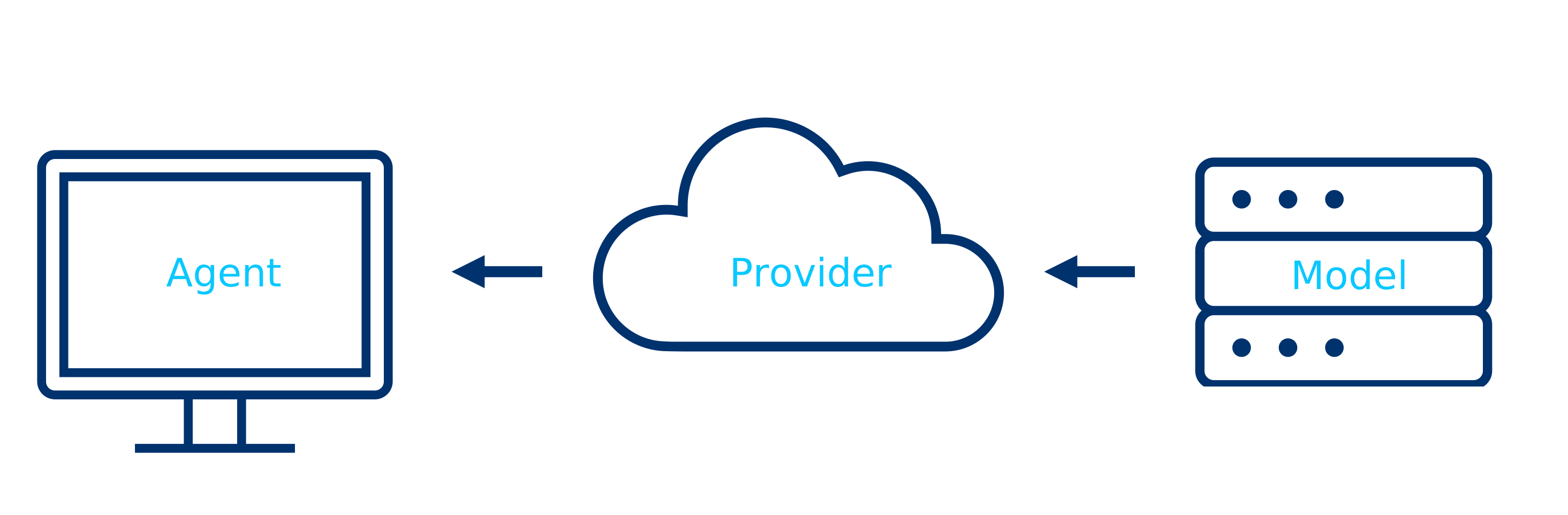
A coding agent is not a single thing — it is a stack of three layers:
- Agent — the program on your computer (or in the cloud) that reads your files, runs commands, and writes code. Examples: GitHub Copilot, Claude Code, OpenCode.
- Provider — the service that hosts and serves the AI model. Examples: GitHub, Anthropic, OpenRouter.
- Model — the large language model that actually generates the code. Examples: Claude Opus 4.5, GPT-4.1, Kimi K2.5.
You choose an agent, connect it to a provider, and pick a model. Different combinations have different privacy and cost implications (see OpenRouter’s privacy and model safety settings):
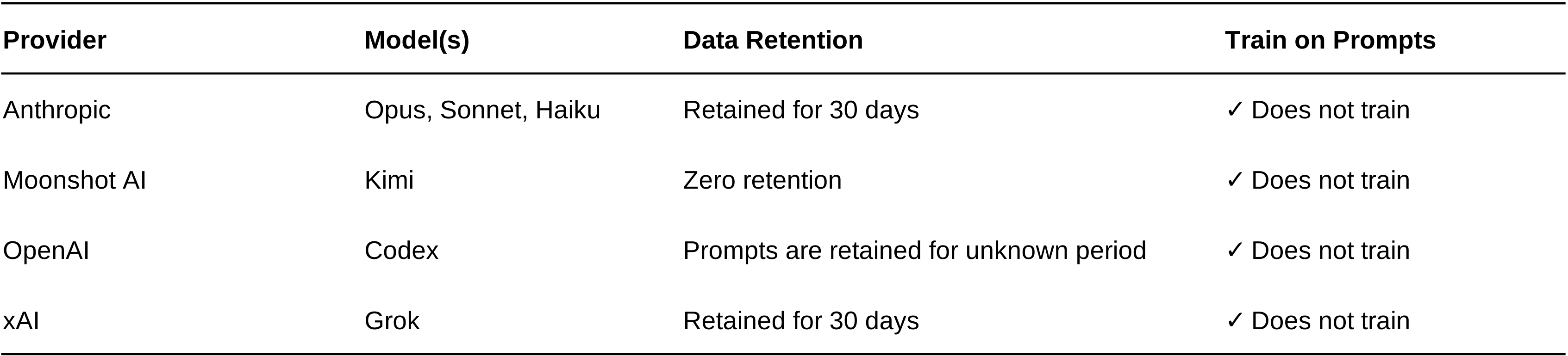
Note: Free models on OpenRouter may train on your interactions. If data privacy is important, use a paid model or check the model’s training policy on OpenRouter before use.
Tools
There are three AI coding tools worth knowing about. “Downloading” one of these tools means installing a program on your computer that can read and write files in your project folder, run terminal commands, and interact with APIs — it is not just a chatbot, it is a coding agent that operates on your local files.
GitHub Copilot (Recommended — free for students)
GitHub Copilot is GitHub’s AI coding assistant. It runs inside VS Code and gives you access to top models (Claude Opus 4.5, GPT-4.1, Gemini) through your GitHub account — no separate API key needed.
What downloading it means: You install the GitHub Copilot extension inside VS Code. This adds an AI chat panel and inline code suggestions directly in your editor. The models run on GitHub’s servers; the extension just connects your editor to them.
Why we recommend it: Free with GitHub Education, gives access to multiple frontier models, and integrates directly into VS Code where you already write code.
GitHub Codex
Codex is GitHub’s cloud-based coding agent. Unlike Copilot (which works alongside you in VS Code), Codex runs autonomously in a cloud sandbox — you give it a task and it works independently, then opens a pull request with its changes.
What downloading it means: There is nothing to download. Codex runs entirely in the browser at github.com. You open a repository on GitHub, click the Codex tab, and assign it tasks. It clones your repo into a cloud environment, makes changes, and submits them as a PR for you to review.
Claude Code
Claude Code is Anthropic’s terminal-based coding agent. It runs in your terminal (command line) and operates directly on your local files.
What downloading it means: You install a command-line program (via npm install -g @anthropic-ai/claude-code). When you run claude in a terminal inside your project folder, it starts an interactive session where you chat with Claude and it can read, edit, and create files on your machine. Requires a paid Anthropic API subscription or access through a provider.
OpenCode + OpenRouter (alternative)
OpenCode is an open-source desktop app that provides a similar agent interface. It can connect to many model providers, including OpenRouter (a single subscription to access many models) and GitHub Copilot.
What downloading it means: You download a desktop application. It provides a chat interface that can read and write files in your project, similar to Claude Code but with a graphical interface and support for multiple providers.
Installation — GitHub Copilot (Recommended)
For a detailed step-by-step walkthrough with screenshots — including applying for GitHub Education, redeeming your Copilot Pro coupon, and enabling the coding agent — see the GitHub Education guide.
- Sign up for GitHub Education with your university email to get Copilot Pro free
- Install VS Code if you don’t have it
- Open VS Code → Extensions (sidebar) → search “GitHub Copilot” → Install
- Sign in with your GitHub account when prompted
- Open the Copilot Chat panel (sidebar icon or
Ctrl+Shift+I/Cmd+Shift+I) - Select a model (e.g. Claude Opus 4.5) from the model picker at the top of the chat
- Make a new folder to begin — e.g. create a
testing AIfolder in your Documents, then open it in VS Code (File → Open Folder)