Get OpenCode — Download and Connect to Copilot
Overview
OpenCode is an open-source desktop coding agent. Once installed, it can connect to GitHub Copilot as a provider, which means you get access to Claude Opus 4.5 and the other premium models bundled with your Copilot Pro subscription — no extra API key needed.
This page walks through: download, pick Copilot as the provider, sign in with GitHub, verify the connection, start a session, and choose a model.
Prerequisite: Copilot Pro active on your GitHub account. If you are a student or faculty, follow GitHub Education — Free Copilot Access first.
Watch the full walkthrough
The YouTube series is the most complete guide — screenshots below mirror the same steps.
▶ Open the Agentic AI in Life Science playlist on YouTube
Steps
Step 1 — Download and install OpenCode
- Go to opencode.ai/download
- Download the build for your OS (macOS, Windows, Linux)
- Install and launch the app
- Make a project folder first, e.g. create a
testing AIfolder in yourDocuments. OpenCode needs a project folder to work in.
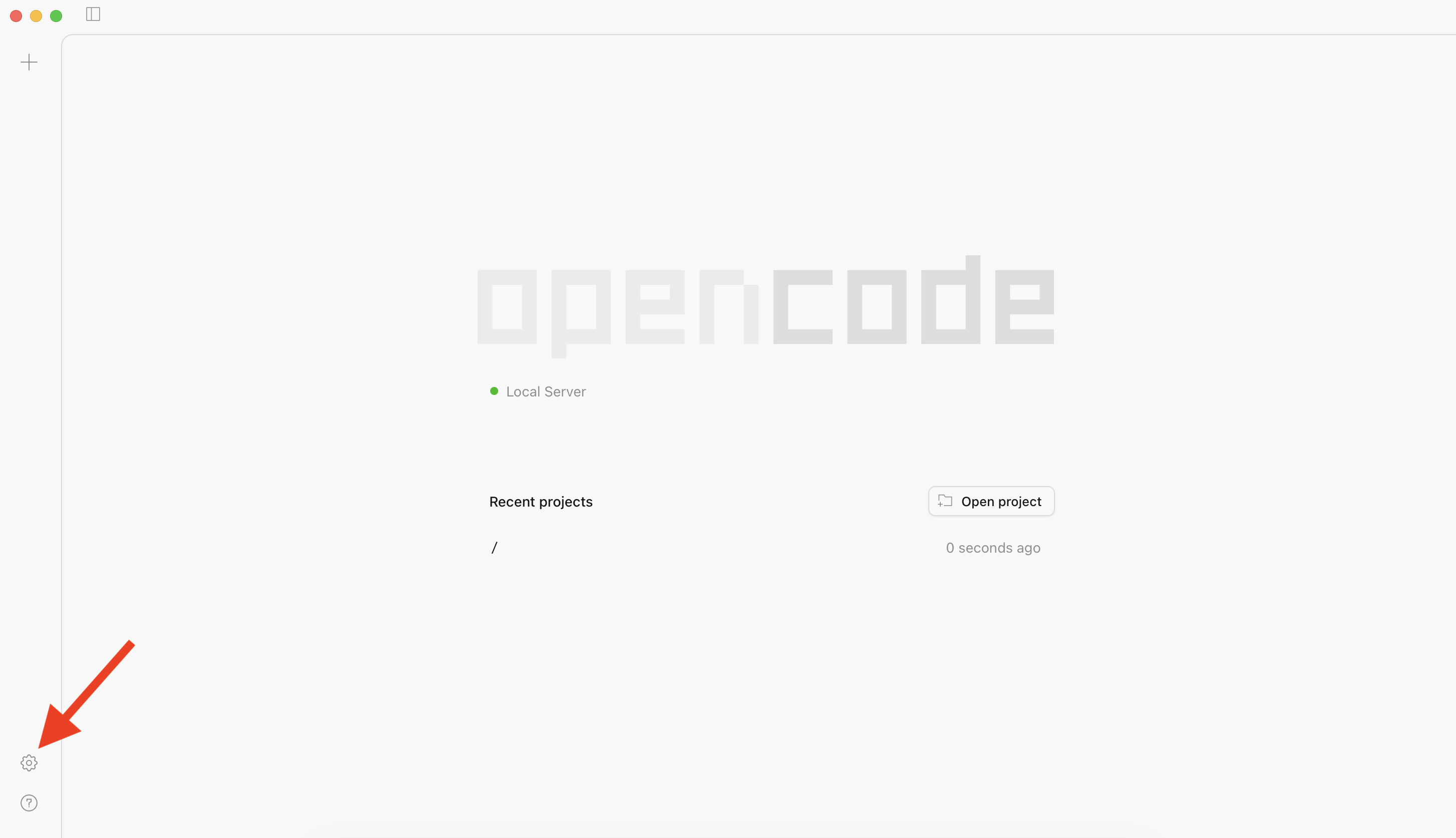
Step 2 — Open Settings
Click the ⚙️ gear icon in the bottom-left corner of the OpenCode window.
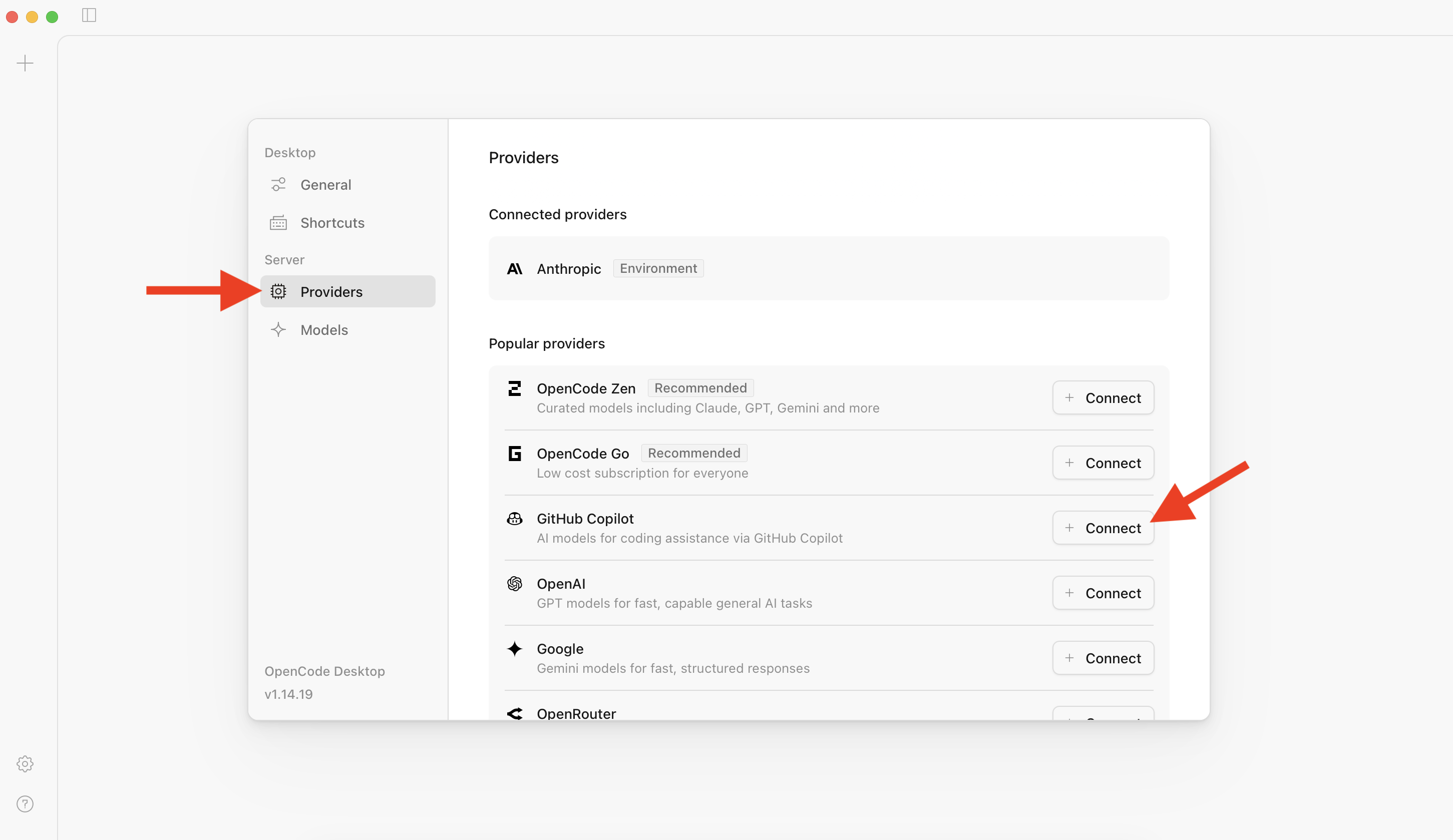
Step 3 — Choose GitHub Copilot as the provider
- In Settings, open the Providers tab
- Select GitHub Copilot
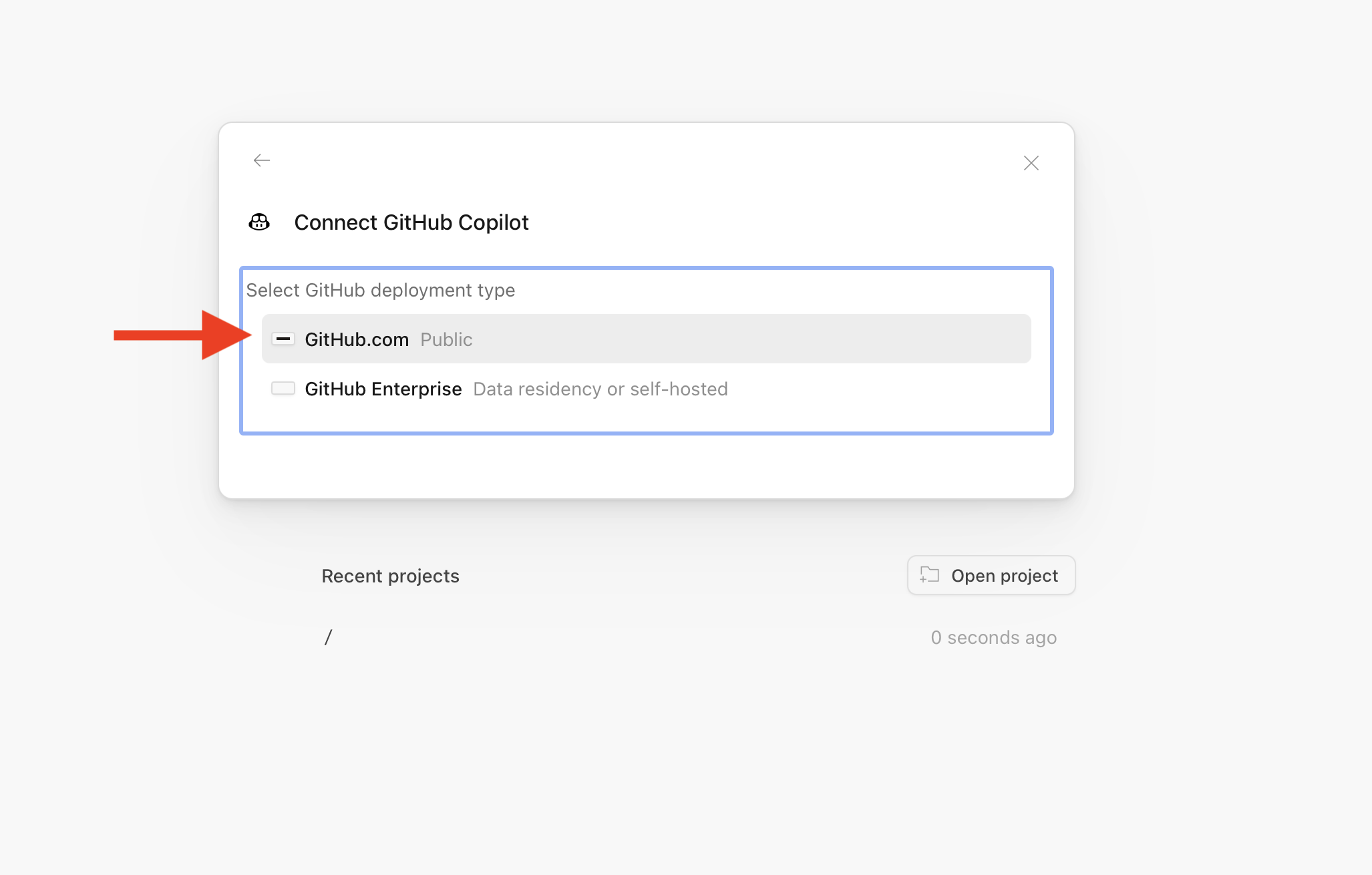
Step 4 — Start GitHub sign-in
Click the github.com link (or Sign in with GitHub) to begin OAuth device authorisation.
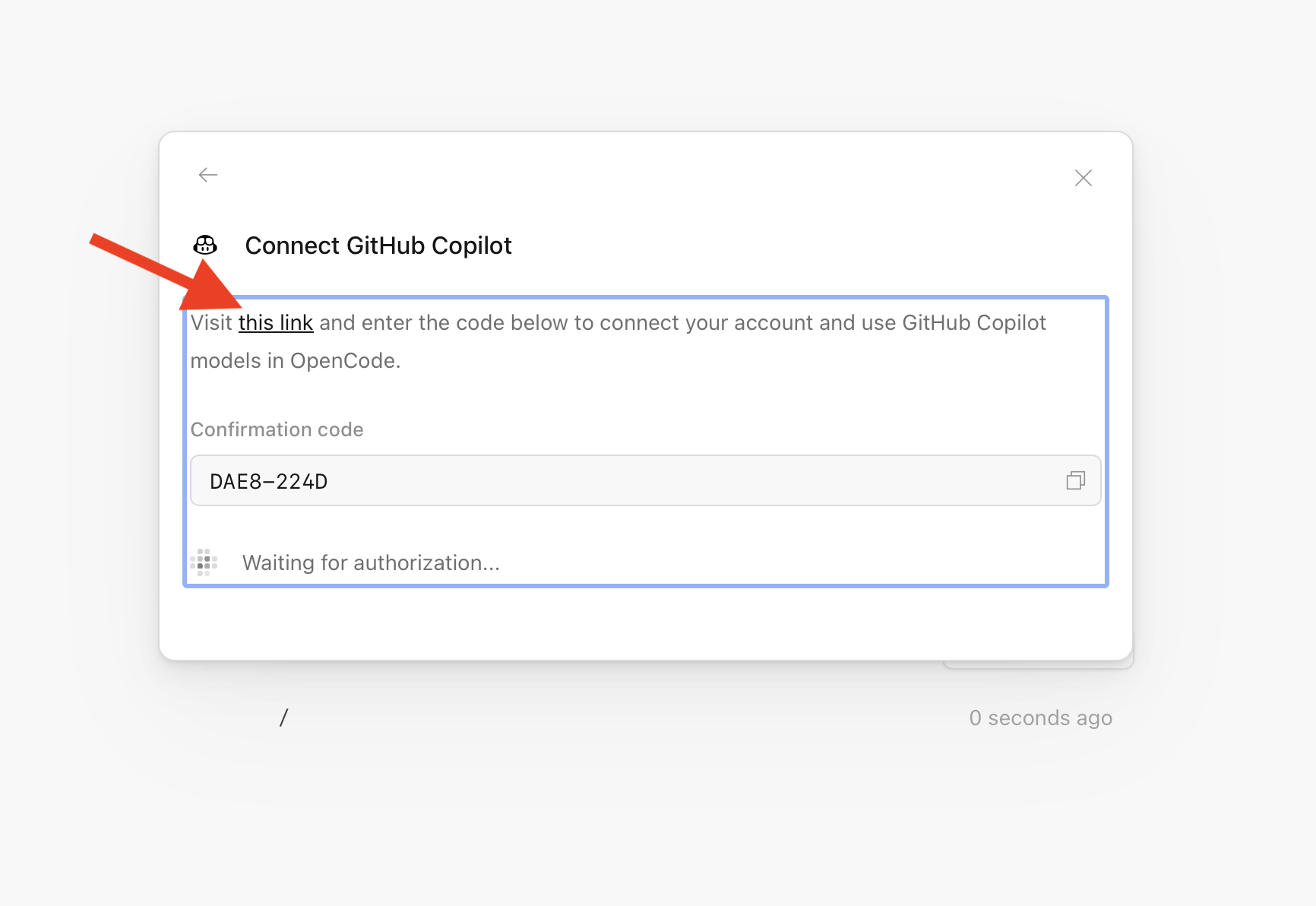
Step 5 — Verify the device code
OpenCode shows a short code and opens github.com/login/device in your browser. Enter the code there to verify.
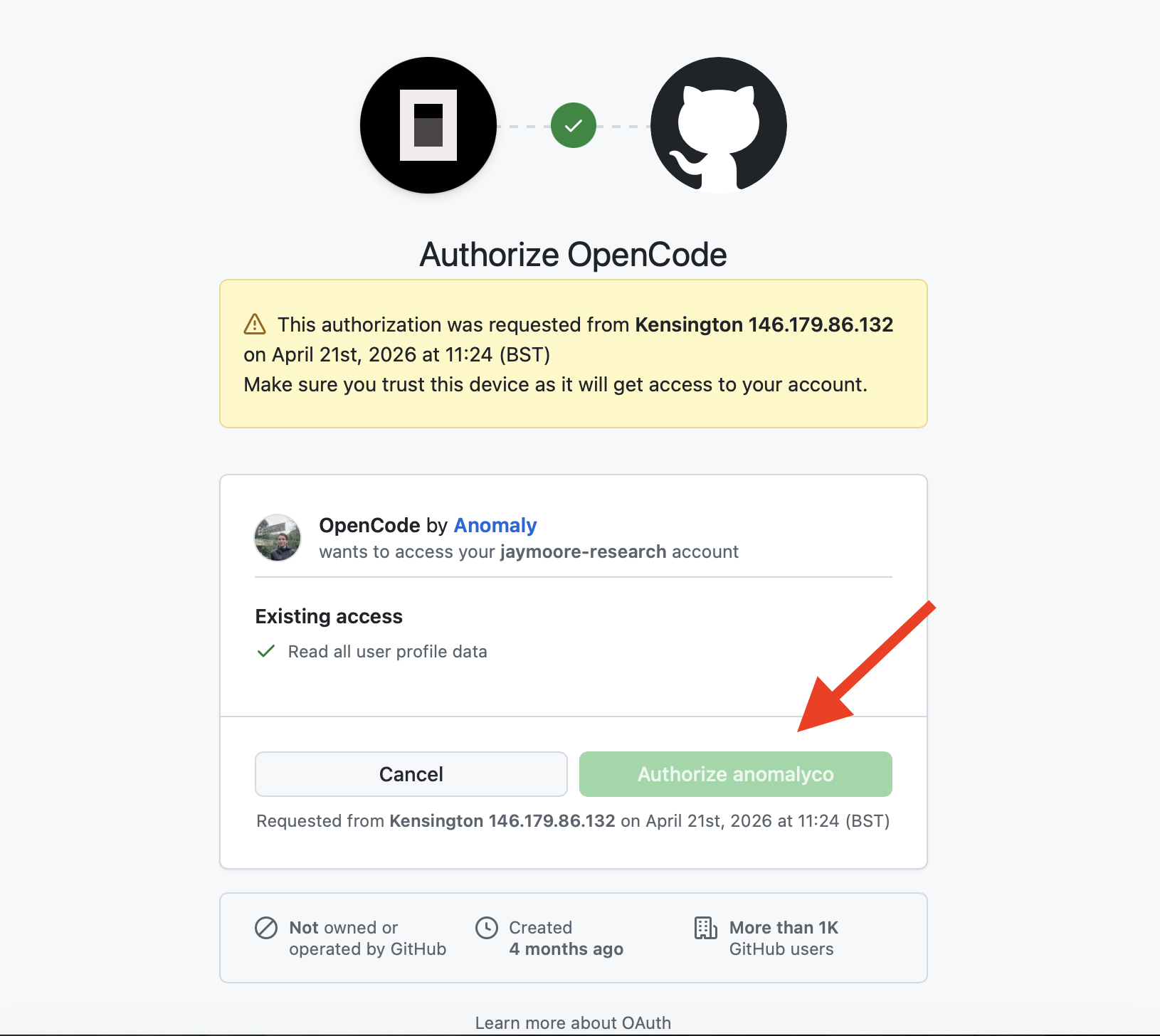
Step 6 — Authorise OpenCode
GitHub asks you to authorise OpenCode to access your Copilot subscription. Click Authorize.
Step 7 — Start a new session
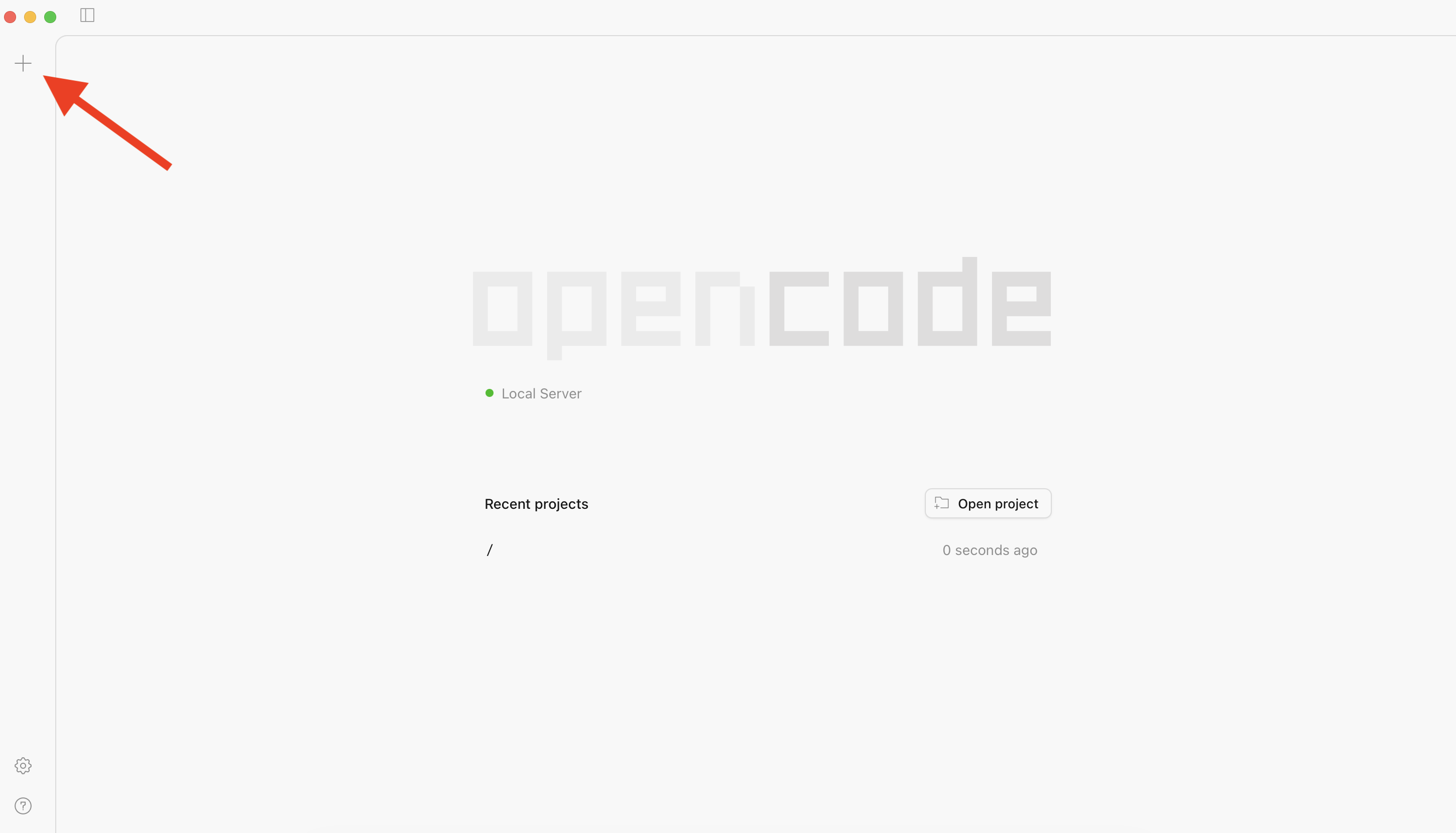
Back in OpenCode, click the + button to create a new project session and point it at your testing AI folder.
Step 8 — Select a Copilot model
Open the model picker and search copilot. Pick Claude Opus 4.5 (or any other model available through your Copilot subscription — GPT-4.1, Gemini, etc.).
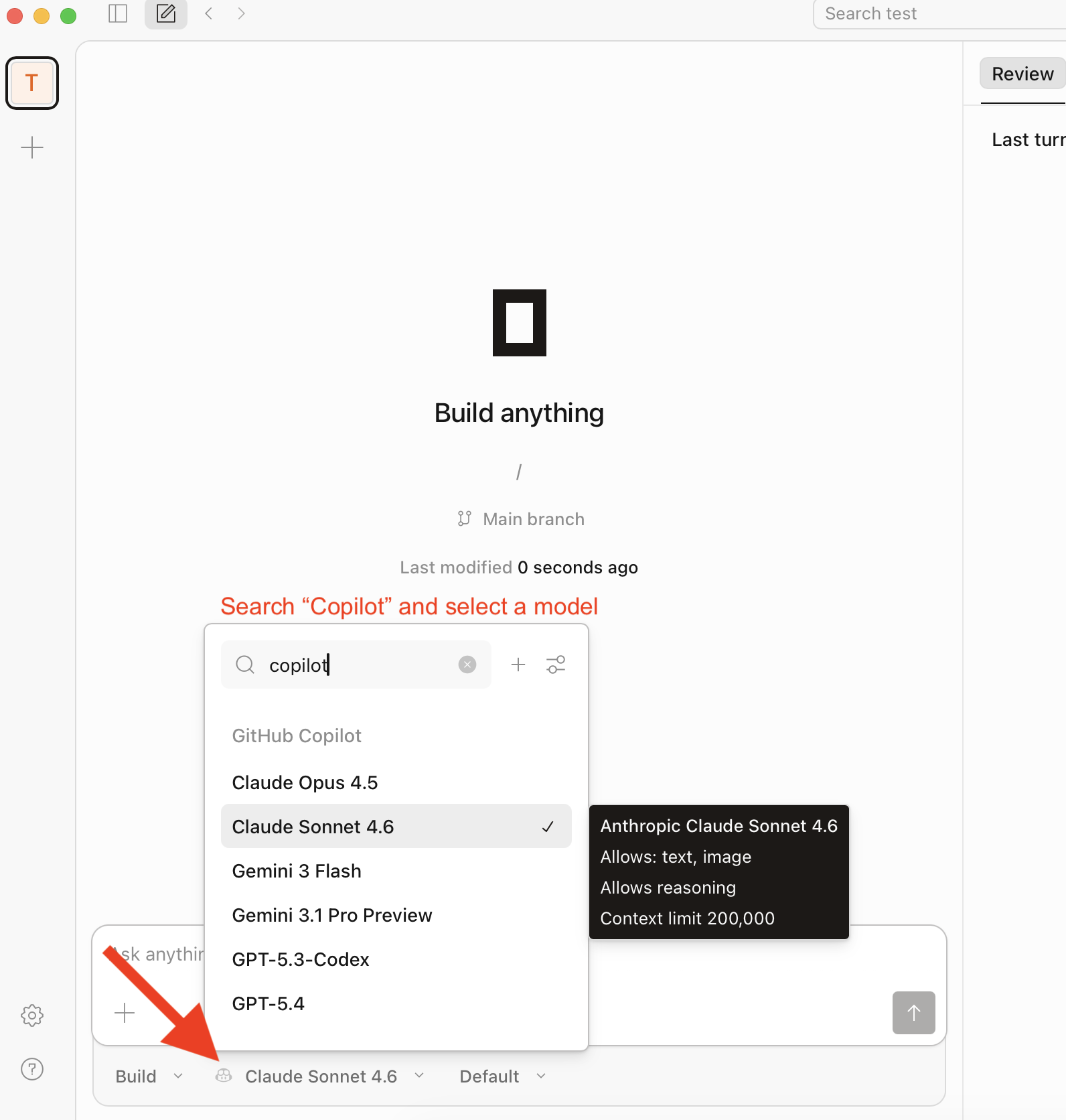
You are now running OpenCode on Copilot-hosted Claude. Return to the Setup tutorial to start your first prompt.
Troubleshooting
- No Copilot models appear. Confirm Copilot Pro is active at github.com/settings/copilot. Education benefits can take up to 72 hours to propagate.
- Device code expired. Close Settings, reopen, click github.com again to request a fresh code.
- “Not authorised” after sign-in. Your org may restrict third-party OAuth apps. Check github.com/settings/applications and approve OpenCode, or ask your org admin.
Alternative — OpenRouter instead of Copilot
If you do not have Copilot Pro, you can use OpenRouter as the provider instead. Same flow, but in Step 3 pick OpenRouter and paste an OpenRouter API key. Free models on OpenRouter may train on your data — check each model’s policy before use.